
[DigitalToday reporter Yoonseo Lee] If you want more efficient battery management after the iOS 26 update, you should open the iPhone Settings app now. The iOS 26 update offers much more detailed customization options than before, allowing iPhone users to optimize their devices to match their usage patterns.
On Jan. 7 (local time), IT outlet NineToFiveMac selected and introduced four essential settings worth changing right after installing iOS 26. Using the default settings is enough to use an iPhone, it said, but adjusting a few options can improve convenience and performance at the same time.
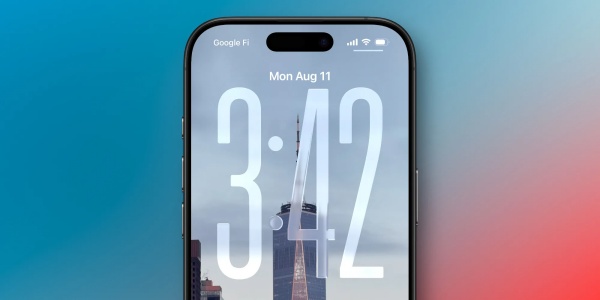
The first setting to check is the background blur effect for Always On Display, or AOD. Apple changed the default setting with the iOS 26 update so the lock screen wallpaper automatically blurs when entering AOD mode. This is seen as a step aimed at minimizing battery drain by reducing unnecessary graphics processing.
Some also say it harms the look of wallpapers users carefully set. If you value visual satisfaction over battery efficiency, or want photos to stay sharp at all times, you can change the setting. Go to Settings > Display & Brightness > Always On Display and turn off Background Blur to enjoy a sharp AOD screen, as in iOS 18.
The second is disabling the swipe gesture on the lock screen that launches the Camera app. The gesture, swiping from right to left, has been a useful feature since the early iPhone days, helping users quickly capture critical moments. But it has also been a main cause of the camera turning on unintentionally in a pocket or malfunctioning during unlocking.
As recently released iPhone models include physical Camera Control buttons or an Action button, the need for the screen swipe feature has fallen sharply. Starting with iOS 26.1, users can turn the feature on and off themselves. Disabling the Lock Screen Swipe option in Settings > Camera means you no longer have to worry about battery waste or overheating caused by malfunctions.
The third recommended setting is Adaptive Power Mode. The existing Low Power Mode extends battery life, but it lowers display brightness and forces limits on app performance, which can hurt the user experience. By contrast, the adaptive power mode newly added in iOS 26 is much smarter.
It operates in normal mode most of the time, and only when it detects a situation in which the battery is rapidly draining does the system step in to adjust power efficiency. Users can enable the option in Settings > Battery > Power Mode. This can secure comfortable battery time all day while making users feel almost no performance drop.
The last feature to note is AirPods sleep detection. Many users listen to audiobooks, podcasts or ASMR before going to bed, but audio often continues playing after they fall asleep, frequently leaving earbuds drained by morning or causing users to lose their place in content.
iOS 26 introduced a function that detects users' biological signals or movement and automatically pauses media playback when they fall asleep. The function is supported on AirPods Pro 3, AirPods Pro 2 and AirPods 4 models, and applies immediately when the Sleep Detection option is turned on in Settings. It is expected to help not only protect hearing but also manage device batteries.
With this update, iOS 26 is evolving toward providing an ultra-personalized experience tailored to each user's lifestyle patterns. If users actively make use of iOS 26's hidden settings, they can build a smarter and more comfortable iPhone environment.
 Yoonseo Lee
yslee@d-today.co.kr
Yoonseo Lee
yslee@d-today.co.kr