
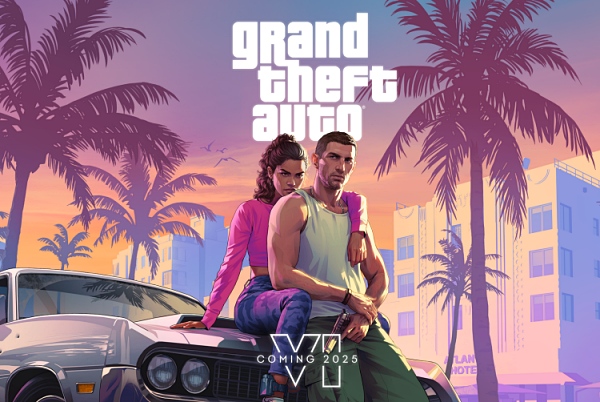
[Digital Today intern reporter Seung-a Yoo] As the release of GTA 6, awaited for more than 13 years, approaches, PlayStation 5 (PS5) users are also focusing on display and audio settings to check in advance.
On Nov. 1 (local time), IT outlet Engadget said console users need to adjust key system settings in advance to enjoy GTA 6 with the best possible picture and sound.
The first item to check is variable refresh rate (VRR). VRR adjusts a TV's refresh rate in real time to match the frames output by the PS5. It reduces screen tearing and stuttering when frame rates drop due to heavy load, such as car chases or crowded streets. The TV must support VRR, and an HDMI 2.1 connection is generally required.
The settings path is Settings → Screen and Video → Video Output → VRR. In the same menu, users can also turn on Apply to Unsupported Games. Sony says the option can help stabilise frame rates even in games that do not natively support VRR. If the screen or game has problems, it is better to turn the option off. Auto Low Latency Mode (ALLM) also automatically switches to game mode on supported TVs. When VRR is used, low-latency mode is applied even if ALLM is turned off.
It may also be worth setting 120 hertz (Hz) output in advance. This does not increase a game's frame rate, but sets the refresh rate of the video signal the console sends to the TV. Even if GTA 6 runs at 30 fps on consoles, 120Hz output still has value. A 30 fps image can be displayed by scanning each frame four times within a 120Hz signal, helping keep the output cadence consistent. Not all HDMI ports on a TV support 120Hz, so users need to connect to a compatible input. The settings path is Settings → Screen and Video → Video Output → 120Hz Output.
HDR settings and calibration are also important. With GTA 6 expected to move between dim, neon-lit interiors and bright outdoor scenes under strong sunlight, setting HDR properly can help preserve detail in bright and dark areas. After enabling HDR for the HDMI input connected to the PS5 on the TV, users can choose the output method under Settings → Screen and Video → Video Output → HDR. Always On converts games and apps that do not support HDR and outputs them in HDR, while On When Supported displays that content in standard SDR.
HDR calibration can be done by following the guidance in the Adjust HDR menu. If the TV has HGiG mode, enabling it can reduce duplication of the TV’s own tone mapping on top of the console’s calibration results. It is better to calibrate under the lighting conditions in the space where the game is actually played.
For audio, users can use 3D audio for headphones. Sony’s 3D audio delivers the location of sounds in three dimensions, such as footsteps heard from an approaching direction, helping users gauge their surroundings. It can also increase immersion in GTA 6’s city environment with heavy traffic and crowd noise.
After connecting headphones, users can create a personalised profile under Settings → Sound → 3D Audio (Headphones). It works by listening to sounds from multiple directions and answering where they are coming from. If users do not create a personal profile, they can choose from five default profiles provided by Sony. The PS5 does not directly support Bluetooth audio, so using wireless Bluetooth headphones requires a USB adapter. Wired headphones can be used.
The impact of these settings varies depending on whether the TV and audio devices support them. After the game is released, users should also check GTA 6’s own graphics and audio options. Checking VRR and 120Hz output, HDR calibration and 3D audio in advance can help users make more effective use of the features provided by the PS5 and peripherals.
 Seung-a Yoo
ysah@d-today.co.kr